Whether you’re based in an office, a remote site, or anywhere with a PC or laptop, the Ok Alone Windows/Web app gives you all the same safety features as our mobile apps, without relying on a phone battery. Keep this guide handy to get started, adjust your settings, and stay safe throughout your shift.
1. Overview
The Windows/Web app is perfect for anyone working alone at a desk or fixed location. You can run it in a browser (at app.okalone.net). Once open, it sits in its tab or window so you can work uninterrupted, then check in with a single click whenever your timer alerts you.
You can open it as a stand alone app:
Once OK Alone is installed as a Web App it can also be pinned to the taskbar to be easily opened at any time.
2. Logging In and Starting Your Shift
-
Open the Windows Store app or navigate to https://app.okalone.net/ in your browser.
-
Enter the PIN you received by email or SMS.
-
Click Start Shift.
-
Your screen will start active monitoring and may show time remaining until your next check-in.
3. Checking In and Ending Your Shift
-
To Check In: When the timer sounds, click Check In. This confirms to your monitor that you’re safe and resets the countdown.
-
To End Your Shift: Click End Shift at the bottom of the screen. This stops all monitoring and location tracking immediately.
4. Requesting Help or Cancelling a False Alarm
-
Request Help: Click Help, then confirm on the next screen. Your monitor receives an immediate alert.
-
Cancel a False Alarm: If you pressed Help by mistake, click Cancel Request on the confirmation screen.
-
Mark Yourself Safe After Help: If you no longer need assistance, click I’m OK to notify your monitor that the situation is resolved.
5. Adjusting Your Settings
At the top left of the app screen is a sandwich menu (the three white bars). This is where you can access settings, messages, select high risk countdown, or log out.
High-Risk Check-Ins
-
Open the sandwich menu (☰) at top left.
-
Select High Risk Check In.
-
Choose a shorter interval (e.g., 5 min, 10 min) to cover your time in a hazardous area.
-
Click Save. This replaces your normal timer until you choose another interval.
Location Monitoring
-
In the ☰ menu, open Settings.
-
Toggle Location On/Off.
-
We recommend keeping it On so your monitor can see your last known position during an emergency.
Alarm Selection
-
In Settings, click Alarm Settings.
-
Click any alarm name to Play a preview.
-
Select your preferred alarm, then click Save Settings.
-
Ensure your device sound is turned on to hear reminders.
6. Sending Messages to Your Monitor
-
From the ☰ menu, select Send Message.
-
Type your message in the text box.
-
Click Send Message. Your monitor receives it instantly via the configured alert channels.
7. Changing Language Preferences
If your browser hasn’t auto-detected your language, choose one here:
-
English
-
Français
-
Español
Click the language, then reload if prompted.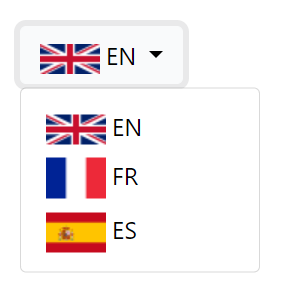
8. Setting Correct Permissions
For locations and notifications to work on your chosen browser will need to allow permissions. Click the small button to the left of the address bar and choose allow for both permissions:
Edge Browser
Chrome Browser