Accessing the Report
-
Sign in to the Ok Alone dashboard.
-
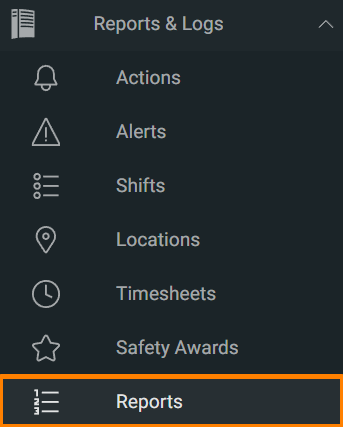
In the left-hand menu, click Reports under Reports & Logs.
-
On the Reports home page, locate the Worker Reports column.
-
Click Man Down Settings.

Report Overview
When you open Man Down Settings, you’ll see each worker’s current and previous Man Down configuration presented as follows:
-
Worker
Displays the name of the employee. -
Man Down
-
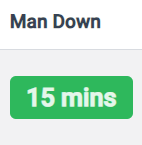
If enabled, shows a badge with their current inactivity timeout (for example, “3 min”).
-
If disabled, the column remains blank.
-
-
Last Change
Indicates the previous timeout value and the date it was applied (for example, “5 min ➔ 3 min on 12 June”).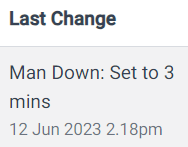
-
Days Change
Details the most recent adjustment, showing the original value and the new value (for example, “15 min → 3 min”).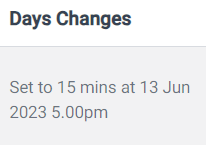
-
Turning Off Man Down
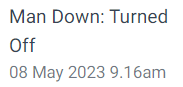
If a worker deactivates Man Down, you’ll see “On → Off” in Days Change (and in Last Change until the next change).
Related Articles
-
Activating Man Down on Android
https://okalonedocs.com/activating-the-man-down-function-on-android/ -
Activating Man Down on iPhone
https://okalonedocs.com/activating-the-man-down-function-on-your-iphone/