This guide explains how to link your ZOLEO satellite communicator with OK Alone, so workers can send check-ins, SOS alerts, and location updates — even outside cell service.
Before You Begin
Before starting setup, make sure:
Your ZOLEO device is activated and registered to a ZOLEO account.
How to Activate Your ZOLEO DeviceYou have your device’s IMEI number (found on the back of your ZOLEO or in the app).
Authorise OK Alone on Your ZOLEO Account
Next, you’ll link your ZOLEO account with OK Alone through ZOLEO’s data-sharing settings.
Go to myzoleo.com and sign in.
On the sidebar, select My Data Sharing.
Find your device in the list and click on it.
Choose OK Alone ZOLEO from the list of available services.
-
On the authorization screen, check all three data feeds:
Location Share+
Check-In
SOS
Tick the box agreeing to share your data with OK Alone.
Click Confirm & Send Email.
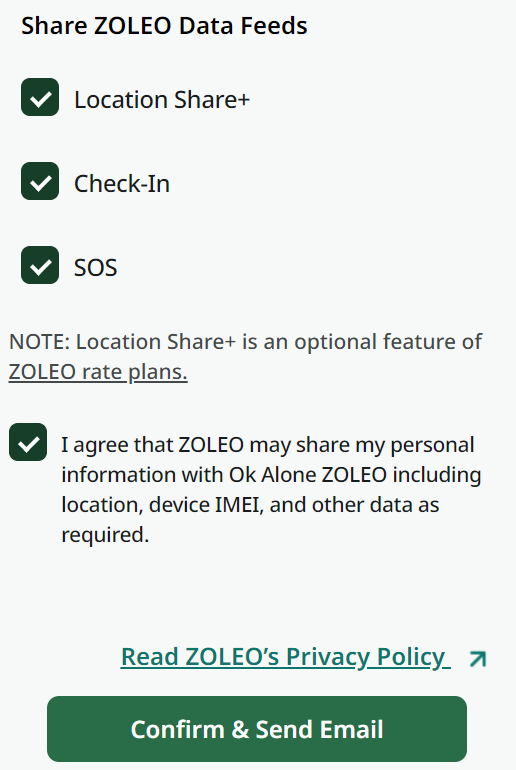
You’ll receive an email confirmation from ZOLEO once the link is active.
Final Authorization on MyZOLEO
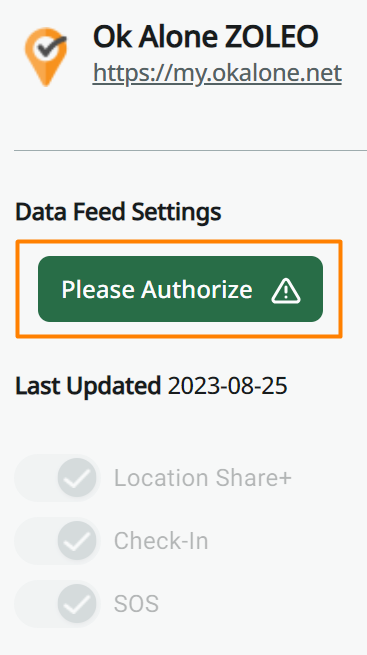
If your ZOLEO still shows “Please Authorize”, click Authorize and then Approve on the pop-up to finalize the connection.
[Insert screenshot of Please Authorize button]
All three feed icons (Location Share+, Check-In, SOS) should turn green once authorized.
Link Your ZOLEO Device to a Worker in OK Alone
On your OK Alone dashboard, go to Workers.
Find the worker who will use the device and click Edit.
Select the ZOLEO Device tab.
Enter the 15-digit IMEI number and ZOLEO number.
Click Update Your ZOLEO IMEI.
Once saved, the device will be linked to that worker’s profile.
Test the Connection
To confirm setup is working:
Go outside where the ZOLEO has a clear view of the sky.
-
Press the Check-In button on your ZOLEO.
This should automatically start a session in OK Alone.
-
Check your OK Alone dashboard — the worker’s shift should appear as active and show a location
Learn more here: Testing Your ZOLEO Device with OK Alone
Using OK Alone with ZOLEO for Remote Status Updates
Read this article to learn more about updating your Status with a ZOLEO device.
Follow this guide: Setting up a ZOLEO Device with OK Alone