What you’ll learn
-
How to locate the Delete Workers tool
-
How to filter workers by date added
-
How to select and exclude workers
-
How to complete the batch deletion
1. Locate the Delete Workers Tool
-
Log in to your Ok Alone dashboard.
-
In the sidebar, click Management, then select Delete Workers.
2. Filter Workers by Date Added
-
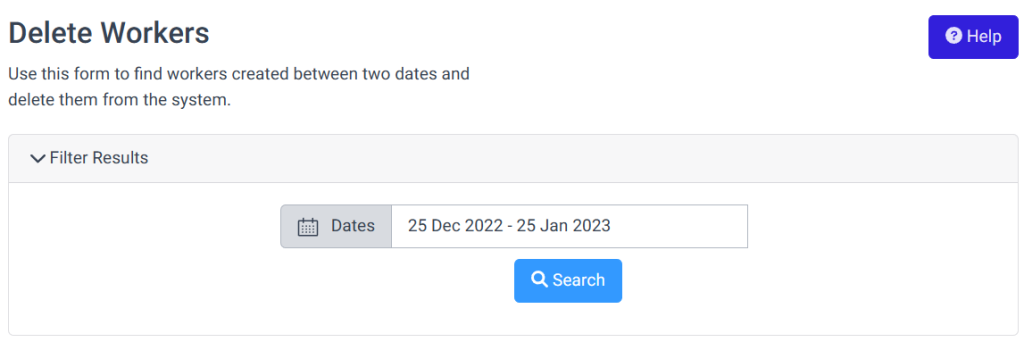
On the Delete Workers page, find the Date Added calendar filter.
-
Choose your Start Date and End Date to define the range when seasonal or temporary workers were imported.
-
Click Search.
3. Review and Adjust Selection
-
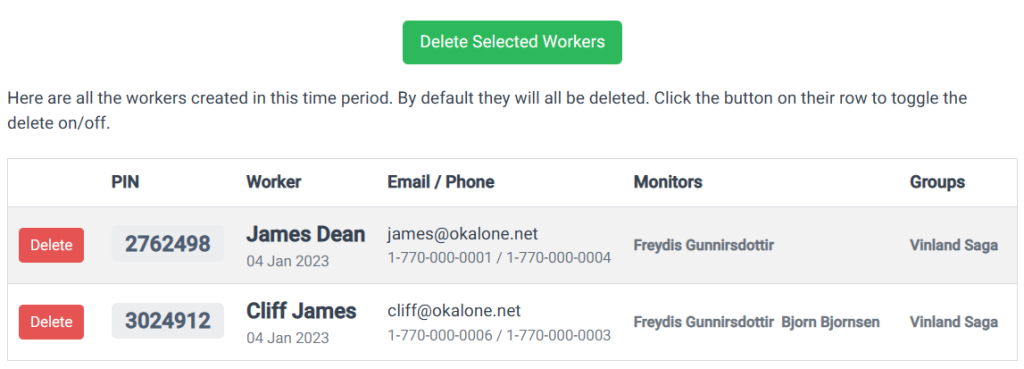
The search results list all workers added within your date range.
-
By default, every worker in the list is marked for deletion (the Delete button appears in red).
-
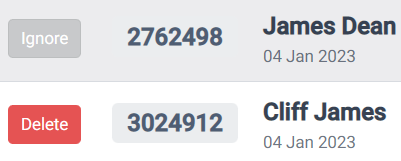
To ignore a worker from deletion, click the red Delete button in that row. It will change to Ignore, and the worker will be safe from removal.
4. Delete Selected Workers
-
After confirming that only the intended workers remain marked Delete, click the green Delete Selected Workers button at the bottom of the page.
-
A confirmation prompt will appear—review the count of workers to be deleted, then confirm to proceed.
-
Ok Alone will permanently remove those worker profiles from your account.
5. Best Practices
-
Double-check your date range before searching to avoid accidental deletions.
-
Use the Ignore feature to protect any worker you want to retain.
-
Export a list of seasonal workers before deletion, if you need to re-import them later.