Within Ok Alone, Worker Groups help you organize workers, apply consistent settings, and streamline monitoring. Follow the instructions below to create new groups, configure group settings, and add workers.
Accessing the Groups Page
Log in to the Ok Alone dashboard at https://my.okalone.net with an Admin or Monitor account.
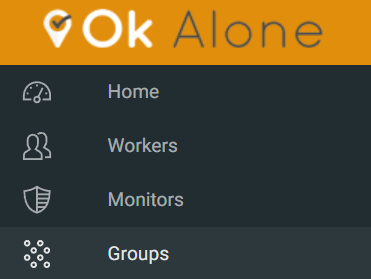
In the left-hand menu, click the Groups icon.
Creating a New Group
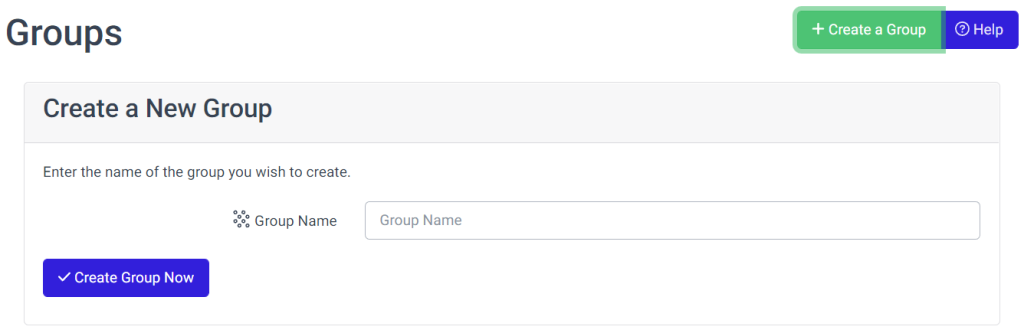
On the Groups page, click Create a Group.
In the Group Name box on the right, type the name you want for the new group.
Click Create Group Now.
The new group appears at the bottom of the table. To configure its settings, click Edit next to the group name.

Updating Group Settings
Once you open the group’s settings page, you can define how the group behaves and which monitors handle its workers.
-
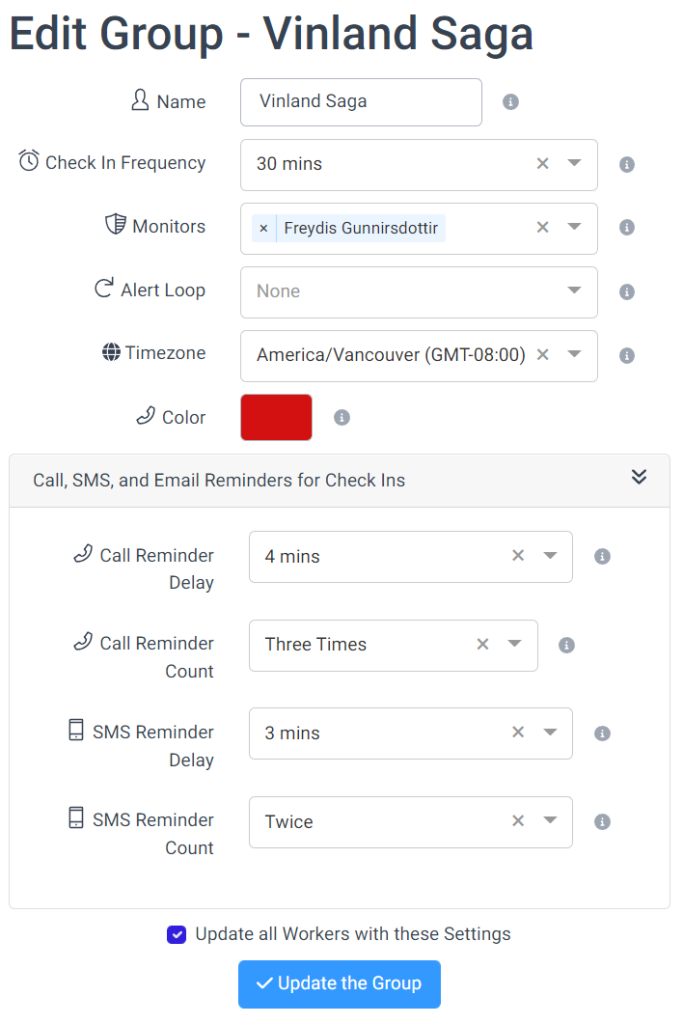
Set Check-In Frequency
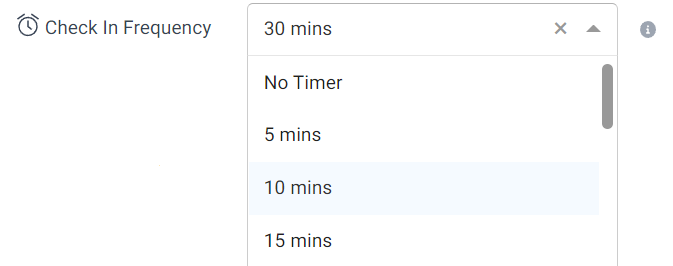
Click the Check in Frequency dropdown.
Select the time interval that applies to all workers in this group (e.g., Every 15 minutes, Every hour).
-
Assign Monitors
Click the Monitor dropdown.
Select one or more Monitors who will receive alerts for this group’s workers.
To set an Alert Loop, click the Alert Loop dropdown and choose the sequence of notifications (e.g., Email → SMS → Phone Call).
If needed, set the group’s Timezone so that reminders and alerts follow the correct local time.
-
Choose a Group Colour
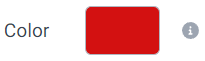
Assign a distinct colour to the group.
This colour appears on the Locations Map, making it easy to identify workers visually.
-
Configure Call, SMS, and Email Reminders (if you have the Comms Plan)
Click the Call, SMS, and Email Reminders tab.
-
For SMS and Call Reminders:
Set the Count (how many times to retry) and the Delay (how long to wait between reminders).
-
For Email Reminders:
Specify a single email notification delay after a missed check-in.
-
Apply Settings to All Workers
If you want these settings to automatically apply to every worker you’ll add to the group, check Update all Workers with these Settings.
Click Update the Group.
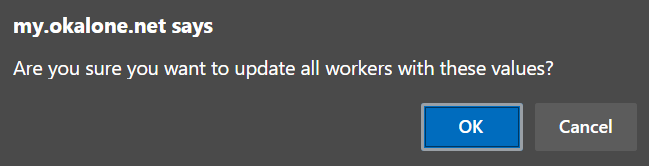
A pop-up appears asking whether to apply these settings to existing workers in the group. Choose the option that applies.
Adding Workers to the Group
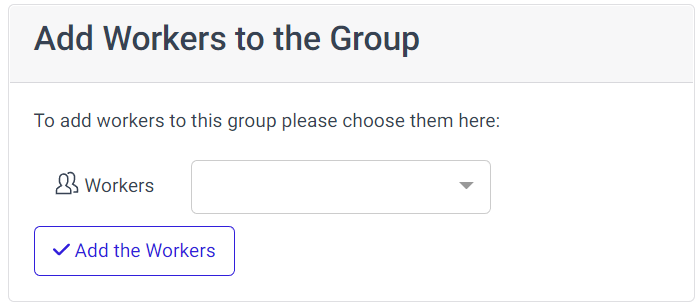
On the same group page, find the Add Workers input on the right.
Select each Worker you want to include in this group.
Click Add the Workers.
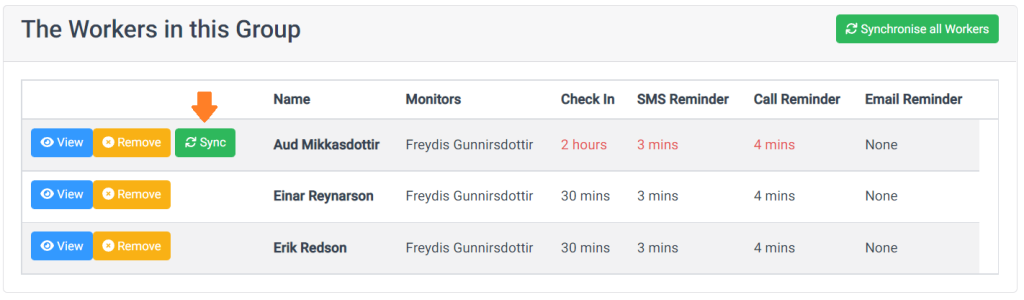
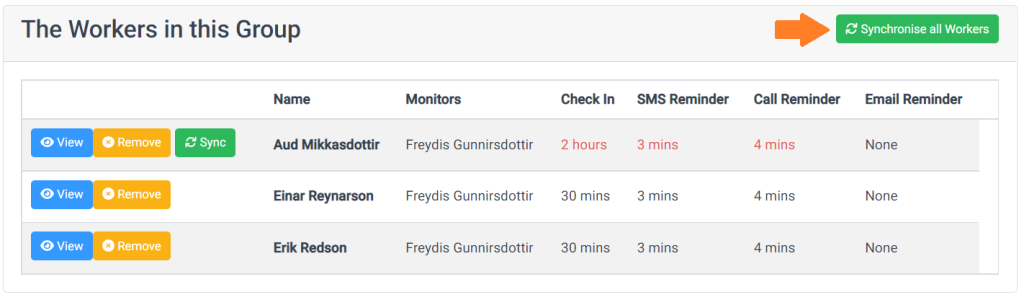
Below, a table lists all workers in the group along with their current Monitor assignments, Check-In settings, and reminder configurations.
Synchronizing Worker Settings
Whenever you add or update workers, ensure their settings match the group’s defaults.
Workers whose individual settings differ from the group’s settings appear in red within the table.
To adjust a single worker, click Sync on that worker’s row; this applies the group’s settings to them.
To apply the group’s settings to all workers at once, click Synchronize All Workers.
Workers’ Monitor assignments, check-in frequencies, and reminder settings now match the group’s configuration.
Note: If you did not check “Update all Workers with these Settings” when editing the group, any mismatched worker settings remain until you click
• Sync for individual workers
• Synchronize All Workers to update everyone
Viewing Groups and Worker Assignments
On the Groups page, you’ll see a list of all your groups and the workers assigned to each.
-
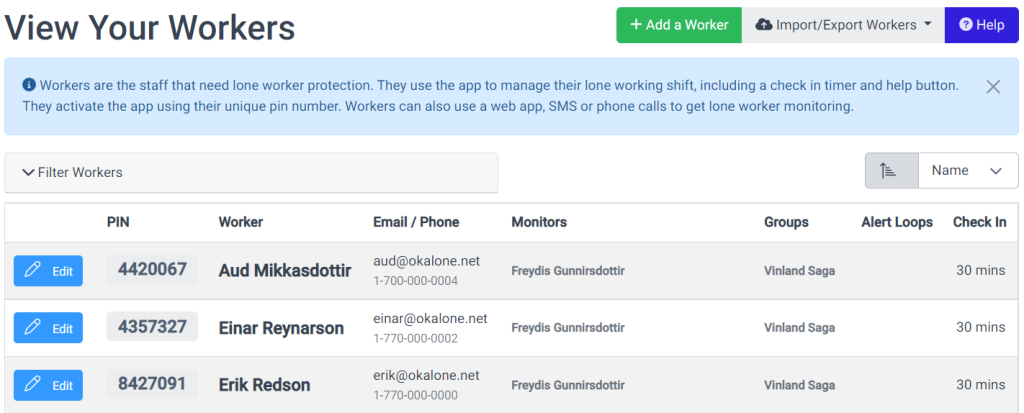
On the Workers page, a Groups column indicates which group(s) each worker belongs to.

Feature Management
Creating and managing Worker Groups requires that the Groups feature be enabled:
Go to Settings → Extra Features.
Under Dashboard Features, ensure Groups is checked (enabled).
Click Update Your Feature Settings if you make changes.
If you do not see “Groups” in your Extra Features list, contact your Ok Alone Admin or email customer.support@okalone.net to request access.
Best Practices
Name Groups Clearly: Use descriptive names (e.g., “Night-Shift Security” or “Field Technicians”) so Monitors immediately understand each group’s purpose.
Assign Monitors Strategically: Group workers by department, shift, or location, and assign Monitors who are accountable for those specific teams.
Use Colors for Quick Reference: Distinct group colors on the Locations Map help Monitors spot at-risk workers faster.
Regularly Review Group Settings: If check-in frequencies or escalation procedures change, update the group settings and synchronize all workers to maintain consistency.
Limit Excessive Groups: Avoid creating more groups than necessary. Consolidate when possible to reduce administrative overhead.
Need More Help?
If you have questions or encounter issues:
Email Ok Alone Support at customer.support@ok-alone.com
By following these steps, you’ll be able to create, configure, and manage Worker Groups efficiently—ensuring consistent monitoring and streamlined workflows across your teams.