What you’ll learn
-
How to prepare the Workers template
-
How to upload and validate your Worker list
-
How to complete the import and send app links
1. Prerequisites
-
You must be an Admin on your Ok Alone account.
-
All Groups you intend to assign must already exist, with check-in frequencies and Monitors configured.
-
You have a spreadsheet editor (e.g., Excel, Google Sheets).
2. Download the Workers Template
-
Log in to the Ok Alone dashboard.
-
Click Workers in the sidebar.
-
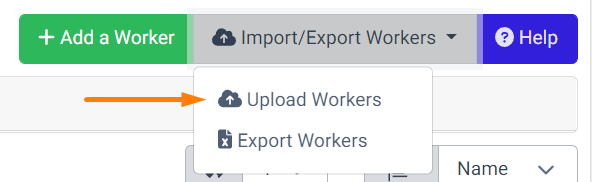
Open the Import/Export Workers dropdown and choose Upload Workers.
-
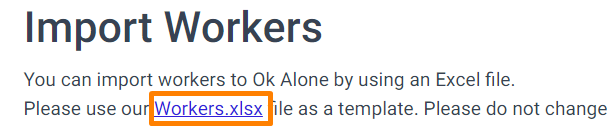
Click the Workers.xlsx link to download the template.
3. Prepare Your Spreadsheet
-
Open Workers.xlsx. Three example rows are provided—delete or overwrite them with your data.

-
Do not reorder columns. They must remain as:
-
Name (required)
-
Phone (optional; for SMS/call alerts)
-
Email (optional; for email alerts)
-
Group (required; must match an existing group name)
-
-
Enter one worker per row, ensuring spelling and group names are exact.
-
Save the file in .xlsx format.
4. Upload and Validate
-
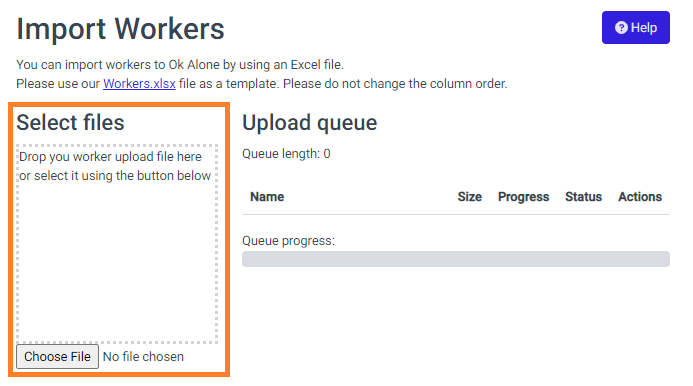
Back on the Upload Workers page, click Choose File or drag your file into the dashed box.
-
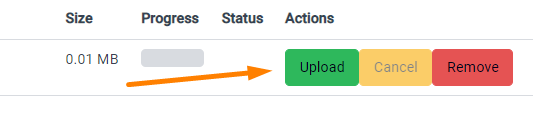
Click the green Upload button.
-
Wait for validation:
-
Correct rows turn green.
-
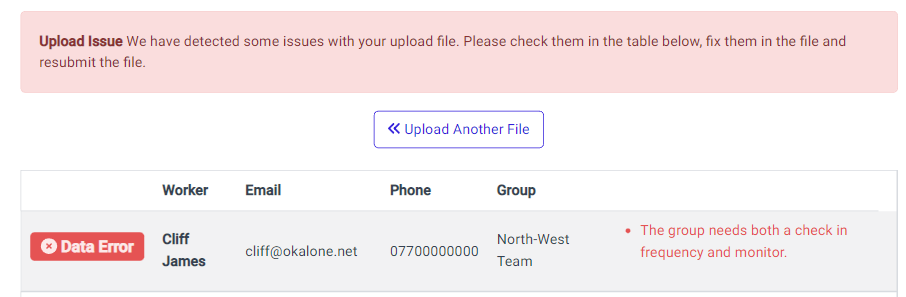
Errors (e.g., missing Name, invalid Group) highlight in red.
-
-
Fix any errors in your spreadsheet, save, and re-upload.
5. Import and Notify
-
Once all rows pass validation, click Import these Workers.
-
After the import completes, click Send App Links to Workers to distribute installation instructions and login details.
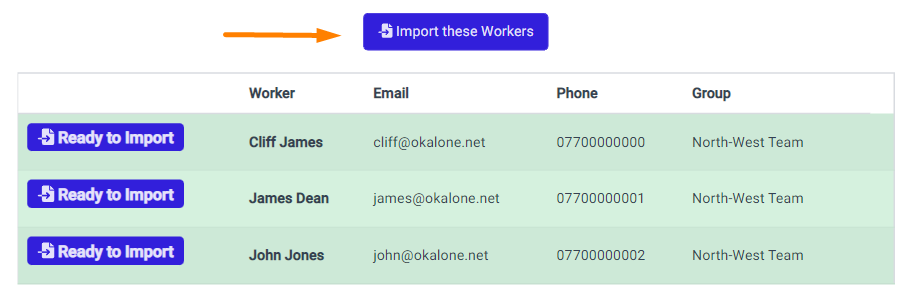
-
However, if there are any issues, such as missing names or incorrect groups, then these will show as errors. They will need to be resolved and the file reloaded before you can import the workers.
- Once the workers are uploaded you can send them all their app links introducing them to Ok Alone. To do this, click the ‘Send App Links to Workers‘ button.
